Sooner or later, working on a Linux server hands you the same error everyone gets: Permission denied. You try to run a script, edit a config file, or save something into a folder, and Linux flatly refuses. It feels like the machine is being stubborn for no reason. It isn’t. Behind that one line is a small, tidy system that decides who is allowed to do what — and once you understand it, those errors stop being mysteries and start being obvious.
File permissions are one of those topics that look intimidating because of how they’re displayed — a cryptic string like -rwxr-xr-- next to every file. But the rules underneath are short and consistent. We’ll take the cryptic part apart piece by piece, and by the end you’ll be reading those strings at a glance and fixing permission problems with confidence.
Why permissions exist at all
A server is a shared place. Multiple programs run on it, sometimes multiple people log into it, and processes started by a web server or a background service all act under their own identities. Without rules about who can touch which files, any program could read your private keys, overwrite your config, or delete the whole system. Permissions are how Linux keeps those boundaries.
Every file and every directory on a Linux system carries two pieces of ownership information and a set of permissions attached to them. Linux checks those before letting anyone read, change, or run a file. That’s the whole job: a gatekeeper that answers one question — is this person allowed to do this thing to this file?
The three things you can do to a file
There are exactly three permissions in the classic Linux model, and you’ll see them everywhere:
- Read (
r) — you can look at the contents of the file, or list what’s inside a directory. - Write (
w) — you can change the file’s contents, or add and remove files inside a directory. - Execute (
x) — you can run the file as a program, or enter a directory (use it in a path).
That last one trips people up, because execute means two different things depending on whether it’s a file or a folder. For a file, execute means “this is a runnable program or script.” For a directory, execute means “you’re allowed to go into it and reach the files inside.” A directory you can read but not execute is oddly useless — you can see the list of names but can’t actually open anything in it.
Directories are files too
On Linux, almost everything is a file, and a directory is just a special kind of file that holds a list of names. That’s why the same three permissions — read, write, execute — apply to both, even though they mean slightly different things for each. Keeping that in mind makes the rest of this much less confusing.
The three groups of people
Permissions aren’t a single switch. Linux splits the world into three categories, and each one gets its own copy of those read/write/execute settings:
- User (
u) — the owner of the file. Usually whoever created it. - Group (
g) — a named group of users. Every file belongs to one group, and members of that group share these permissions. - Others (
o) — everyone else on the system who isn’t the owner and isn’t in the group.
So a file doesn’t have one permission setting — it has three sets of three. The owner might be allowed to read and write, the group only allowed to read, and everyone else allowed nothing. That’s the flexibility the system gives you: different access for different people, all on the same file.
Reading the cryptic string
When you run ls -l to list files in detail, every line starts with something like this:
$ ls -l
-rwxr-xr--  1 jane  developers  2048  Sep 18 09:14  deploy.sh
That first column — -rwxr-xr-- — is the permission string, and it’s not random. Break it into pieces:
-  rwx  r-x  r--
│   │    │    │
│   │    │    └── others:  read only
│   │    └─────── group:   read + execute
│   └──────────── user:    read + write + execute
└──────────────── file type ( - = file, d = directory )
The very first character is the type: a dash (-) means a regular file, a d means a directory, an l means a symbolic link. After that come three blocks of three characters each: the owner’s permissions, then the group’s, then everyone else’s. Inside each block, the positions are always in the same order — read, write, execute — and a dash means “this permission is off.”
So -rwxr-xr-- reads as: it’s a regular file; the owner (jane) can read, write, and execute it; the group (developers) can read and execute but not write; everyone else can only read it. Once you see the three-by-three grid, the string stops looking like noise.
The numbers: 644, 755, and friends
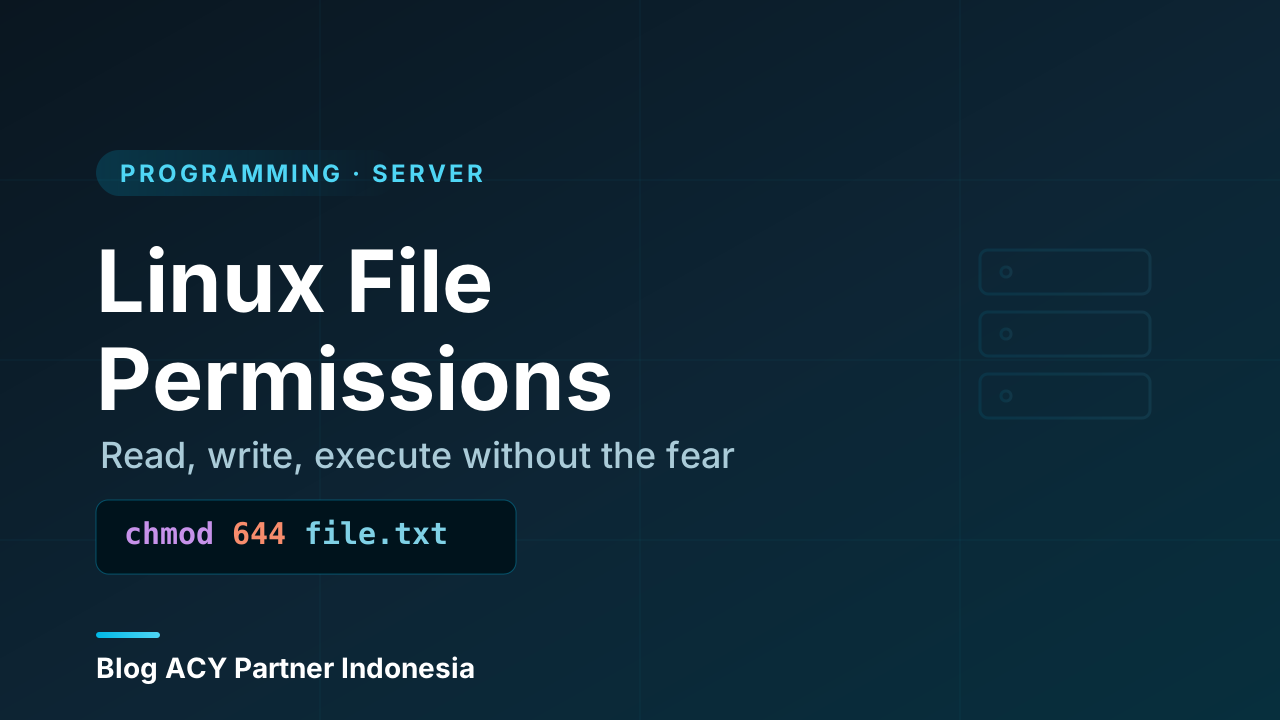
You’ll constantly see permissions written as three-digit numbers — chmod 644, chmod 755. These are the exact same permissions, just encoded as numbers instead of letters. The trick is that each of read, write, and execute is worth a value:
read    (r) = 4
write   (w) = 2
execute (x) = 1
You add up the values for each group of people to get a single digit. Want read + write? That’s 4 + 2 = 6. Read + execute? 4 + 1 = 5. All three? 4 + 2 + 1 = 7. None? 0. Because you do this once for the user, once for the group, and once for others, you end up with three digits — one per group.
  7   5   5
  │   │   │
  │   │   └── others:  r-x  (4+1)
  │   └────── group:   r-x  (4+1)
  └────────── user:    rwx  (4+2+1)
So the two numbers you’ll meet most often have clear meanings:
644→ owner reads and writes (6), group reads (4), others read (4). The normal setting for a regular file like an HTML page or a text document.755→ owner does everything (7), group and others read and execute (5). The normal setting for a directory or for a script you want people to run.
It feels like magic at first, but it’s just addition. After a few times you’ll read 750 and instantly know: owner full access, group read + execute, others nothing.
The two defaults to memorize
If you remember nothing else, remember these two: 644 for files, 755 for directories and scripts. Files normally don’t need to be executable, so they get 644. Directories need the execute bit to be enterable, and scripts need it to run, so they get 755. Reaching for the right default first saves you a lot of guessing.
Changing permissions with chmod
The command that changes permissions is chmod (“change mode”). It speaks both dialects — numbers and letters — so you can use whichever feels clearer.
The numeric style is the most common. You just hand it the three-digit number:
chmod 644 notes.txt        # owner rw, group r, others r
chmod 755 deploy.sh        # owner rwx, group rx, others rx
chmod 600 secret.key       # owner rw, nobody else anything
The symbolic style is handy when you want to change one thing without recalculating the whole number. You name the group (u, g, o, or a for all), an operation (+ to add, - to remove, = to set exactly), and the permission:
chmod +x script.sh         # add execute for everyone
chmod u+x script.sh        # add execute, just for the owner
chmod g-w report.csv       # remove write from the group
chmod o= private.txt       # set others to nothing
To change a whole directory and everything inside it at once, add -R (recursive). Be careful with it, though — it’s an easy way to accidentally change thousands of files:
chmod -R 755 /var/www/siteNever reach for 777
You’ll find advice online telling you to fix a permission problem by running chmod 777 — that means everyone can read, write, and execute everything. It usually makes the error go away, and it’s almost always the wrong fix. On a server, 777 is a genuine security hole: any user or compromised process can overwrite your files. Take the extra minute to figure out which specific permission is actually missing, and set just that. The real fix is usually 644, 755, or correcting the owner — never 777.
Changing ownership with chown
Permissions decide what each group can do; ownership decides who the owner and group actually are. The command for that is chown (“change owner”). This matters a lot on servers, because files created by one user often need to be handed to another — for example, web files that should belong to the web server’s user.
chown jane file.txt              # set the owner to jane
chown jane:developers file.txt   # set owner to jane AND group to developers
chown :developers file.txt       # change only the group
chown -R jane:developers /app    # apply to a whole directory tree
A classic real-world example: you upload a website to a server as your own login, but the web server runs as a different user (often www-data). The files belong to you, so the web server can’t read them properly. The fix isn’t to open the permissions wide — it’s to hand ownership to the right user with chown. Getting ownership right first usually means you barely have to touch permissions at all.
A worked example
Let’s tie it together. Say jane deploys a small site for ACY Partner Indonesia into /var/www/site. She wants the directories enterable, the regular files readable, the deploy script runnable, and a private key locked down tight. Here’s a sensible setup:
# directories: owner full, others can enter + read
chmod 755 /var/www/site

# normal web files: owner writes, everyone reads
chmod 644 /var/www/site/index.html

# the deploy script: owner can run it
chmod 750 /var/www/site/deploy.sh

# the private key: only the owner, nothing else
chmod 600 /var/www/site/secret.key

# hand the whole tree to the web server's user
chown -R www-data:www-data /var/www/site
Notice the pattern: directories get 755, plain files get 644, scripts get 750 (the group and others don’t need to run it), and secrets get 600 (nobody but the owner touches them). None of it needs 777, and every choice maps back to a real reason.
Decoding “Permission denied”
When you hit the error, you now have a checklist instead of a shrug. Walk through it in order:
- Run
ls -lon the file and read the permission string. Which group are you in for this file — the owner, the group, or others? Look at that block. - Check the action. Trying to run a script but the execute bit is missing? Trying to write but you only have
r? The missing letter is your answer. - Check the directory, not just the file. To open a file you also need execute (
x) on every directory in its path. A perfectly readable file inside a folder you can’t enter is still unreachable. - Check ownership with
ls -l. If you’re not the owner and not in the group, you’re “others” — and maybe “others” has no access on purpose.
Most permission errors come down to one of these four. The fix is then small and precise: add the one missing bit with chmod, or correct the owner with chown. No need to nuke everything with 777.
root sees all
There’s one user who ignores all of this: root, the system’s superuser. Root can read, write, and execute anything regardless of the permission bits. That’s why people use sudo to run a command as root when they hit a wall — but it’s also why you should be careful. Root having no limits means a mistake as root has no safety net either. Use it deliberately, not as a reflex to silence errors.
Wrapping up
Here’s the whole model in one place:
- Linux permissions answer one question: is this person allowed to do this to this file? They exist because a server is a shared space that needs boundaries.
- There are three permissions — read (4), write (2), execute (1) — and three groups they apply to: user, group, others.
- The string
-rwxr-xr--is just type + three blocks of rwx: owner, group, others, in that order. A dash means the permission is off. - The numbers are the same thing added up: 644 for normal files, 755 for directories and scripts are the defaults worth memorizing.
chmodchanges permissions (numeric like644, or symbolic likeu+x);chownchanges who owns the file and what group it belongs to.- When you see
Permission denied, check the file’s bits, the action, the directories along the path, and the ownership — then fix the one missing piece. Never reach for777.
Permissions sit right at the heart of working on a server safely. They build directly on knowing your way around the filesystem and the command line, and they’ll come up again the moment you start dealing with multiple users and the groups they belong to. If you keep the read/write/execute trio and the user/group/others split in your head, you’ve got everything you need to stop fearing Permission denied for good.
If you’d like to go back over the tools used here, the basics of moving around at the prompt are in The Command Line, and how files and directories are organized lives in The Linux File System.