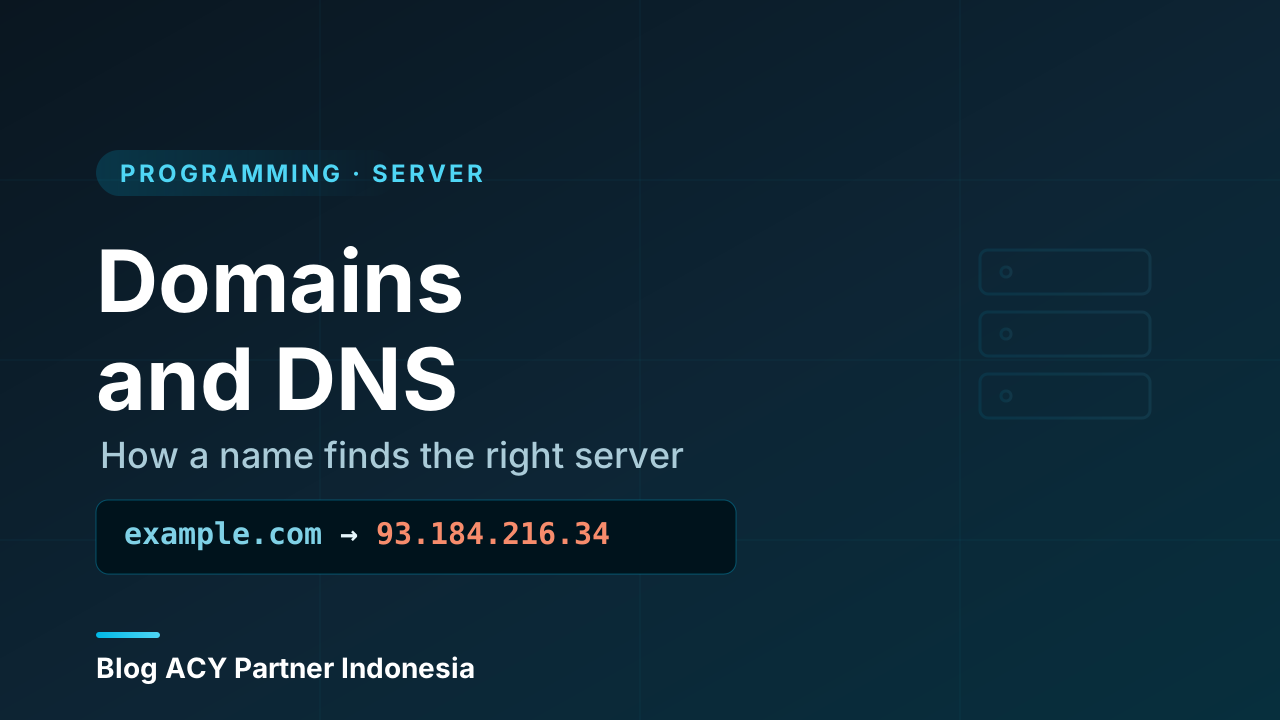
You type example.com into your browser, hit enter, and a page shows up. It feels instant and obvious. But behind that simple act, your computer just did something it can’t actually skip: it looked up a name and found a number. Servers don’t live at names — they live at numeric addresses. The whole point of domains and DNS is to let humans use easy-to-remember names while the machines quietly do the number-crunching in the background.
If you’ve ever wondered why a brand-new website “isn’t showing up yet,” or what people mean when they say “point your domain at the server,” this is the piece that makes it all click. Once you see how a name turns into an address, a huge chunk of how the web is wired up stops feeling like magic.
What a domain name actually is
A domain name is the human-friendly address of something on the internet — example.com, wikipedia.org, acy-partner.com. It’s a label you can read, say out loud, and remember. That’s its entire job: to stand in for an address that’s much harder to recall.
That harder address is an IP address — a number that identifies a specific machine on a network, something like 93.184.216.34. Servers find each other using IP addresses, not names. So example.com is really just a friendly nickname that points to an IP address. The domain is the name; the IP is where the server actually lives.
A domain is also structured, and it reads right-to-left in terms of hierarchy:
        www  .  example  .  com
         │         │         │
    subdomain    name      top-level
(optional) domain (TLD)comis the top-level domain (TLD) — the rightmost part. Others you know:.org,.net,.io, country ones like.idor.uk.exampleis the part someone registers. Together with the TLD it forms the registrable domain — the thing you actually buy and own for a while.wwwis a subdomain — an optional prefix you can create as many of as you like (blog.example.com,shop.example.com,api.example.com), each able to point somewhere different.
You don’t truly own a domain forever — you register it for a period (usually a year at a time) through a registrar, and you keep it as long as you renew. Let the registration lapse and someone else can grab it.
A domain and a website are not the same thing
This trips up a lot of beginners. A domain is just a name you’ve registered. A website is files served by a server. The domain doesn’t contain your site — it merely points to the server that does. That’s why you can own a domain with no website behind it, move the same domain to a different server later, or have the domain point to one server today and a totally different one tomorrow. The name and the machine are separate things, connected by a setting you control.
DNS: the internet’s address book
So names are friendly and IPs are what machines use. Something has to translate between them. That something is DNS — the Domain Name System.
The easiest way to picture DNS is as a giant, distributed phone book (or contacts app) for the internet. You know a name, you look it up, you get back a number. You ask “what’s the address for example.com?” and DNS answers “93.184.216.34.” Your computer then connects to that, and the conversation that loads the actual page can begin.
What makes DNS clever is that no single computer holds the whole phone book. It’s spread across millions of servers worldwide, organized in a tidy hierarchy, so the system stays fast and keeps working even when parts of it go down. The lookup that turns a name into an address is called DNS resolution.
How a DNS lookup actually works
Let’s walk through what happens the first time your computer needs to find example.com. It’s a short relay race between four kinds of servers, each one pointing you a little closer to the answer.
  YOUR COMPUTER
       │  "where is example.com?"
       ▼
  ┌───────────────┐   1. asks ──►  ROOT server
  │   RESOLVER    │   "who handles .com?"  ◄── ".com is over there"
  │ (recursive    │
  │  DNS server)  │   2. asks ──►  TLD server (.com)
  │               │   "who handles example.com?" ◄── "ask example's name server"
  │               │
  │               │   3. asks ──►  AUTHORITATIVE name server
  │               │   "what's example.com's IP?" ◄── "93.184.216.34"
  └───────┬───────┘
          │  4. returns the IP
          ▼
  YOUR COMPUTER  ──►  connects to 93.184.216.34
Step by step:
- You ask a resolver. Your computer doesn’t go hunting itself. It hands the question to a recursive resolver — usually run by your internet provider, or a public one like a well-known
8.8.8.8or1.1.1.1. The resolver’s job is to do the legwork and come back with a final answer. - The resolver asks a root server. There are a small, fixed set of root servers at the very top. They don’t know
example.comdirectly, but they know who’s in charge of each TLD. The root says, “for anything ending in.com, go ask the.comservers.” - The resolver asks the TLD server. The
.comTLD server doesn’t know the IP either, but it knows which name server is responsible forexample.comspecifically. It replies, “askexample.com’s authoritative name server.” - The resolver asks the authoritative name server. This is the server that holds the real records for
example.com— the source of truth. It finally answers with the actual IP address.
The resolver hands that IP back to your computer, and only now can your browser open a connection to the server and request the page. All of this normally finishes in a few milliseconds.
Why the second visit is instant: caching
Doing that whole relay for every single request would be slow and wasteful, so DNS leans heavily on caching. Each answer comes with a TTL (time to live) — a number of seconds it’s allowed to be remembered. Your computer, your resolver, even your browser all cache results until the TTL expires. So the first visit to a site does the full lookup; the next ones reuse the cached answer and skip straight to connecting. This is also why DNS changes don’t take effect instantly — old cached answers linger until their TTL runs out.
DNS record types you’ll actually meet
The “real records” sitting on an authoritative name server come in a few flavors. Each record type answers a different question about the domain. You don’t need all of them memorized, but these are the ones you’ll bump into constantly:
Arecord — maps a name to an IPv4 address (like93.184.216.34). This is the classic “where does this domain live?” record.AAAArecord — same idea, but for a newer IPv6 address. (Said “quad-A.”)CNAMErecord — an alias that points one name at another name instead of an IP. For example,www.example.comcan be a CNAME pointing toexample.com, so they always resolve to the same place. Handy when an address might change — you update one record, not many.MXrecord — the mail exchange record. It says which server handles email for the domain. This is separate from your website: your site can live on one server while your email goes to another.TXTrecord — free-form text attached to a domain. It’s used for verification and security purposes (proving you own a domain, or settings that help stop email spoofing).NSrecord — the name server record, which says which authoritative servers are in charge of the domain in the first place.
example.com   record overview
─────────────────────────────────────────────
  A      example.com        →  93.184.216.34
  AAAA   example.com        →  2606:2800:220:1:...
  CNAME  www.example.com    →  example.com
  MX     example.com        →  mail-handler (priority 10)
  TXT    example.com        →  "verification / policy text"
  NS     example.com        →  ns1.host.com, ns2.host.com
A single domain usually has several records at once — an A record so the website resolves, an MX record so email works, a TXT record or two for verification. They live together and each does its own job.
“Pointing a domain at a server”
This phrase comes up the moment you go to put a real site online, so it’s worth nailing down. When someone says “point your domain at the server,” they mean: edit the domain’s DNS records — usually the A record — so the name resolves to your server’s IP address.
The mental model is simple:
  registrar / DNS settings
  ┌──────────────────────────────┐
  │  A   example.com  →  203.0.113.10  │  ◄── you set this
  └──────────────────────────────┘
                 │
                 ▼
   anyone typing example.com now reaches 203.0.113.10
You bought a server somewhere and it has an IP. You own a domain. To connect them, you log into wherever your DNS is managed and set the A record for the domain to that server’s IP. From then on, visitors typing your domain land on your server. If you ever move to a new server, you change one number, and traffic follows.
New domains take time — that's propagation, not a bug
Set up a brand-new domain or change a record and it often doesn’t work right away. This is normal. Because answers are cached all over the internet (remember TTL), the change has to ripple out as old cached entries expire. People call this propagation, and it can take anywhere from minutes to a day or so depending on the TTL that was set. So if a new site shows nothing immediately after you point the domain, don’t panic and start changing things — give it time, and confirm the record is set correctly. Lowering the TTL before a planned change makes future updates spread faster.
Why this matters
Domains and DNS sit underneath almost everything you’ll do once your work leaves your own machine. The moment you want a real website that people can reach by name — instead of a raw IP address only you remember — you’re using this system. Hosting a site, setting up email for a domain, moving to a bigger server, putting a service behind a friendlier address: all of it runs through DNS.
It also quietly shapes how you debug problems. “The site is down” sometimes really means “the domain isn’t resolving” — a DNS issue, not a server issue. Knowing the difference between the name not finding the server and the server not answering will save you hours of looking in the wrong place. If you want a refresher on the request-and-response journey that begins after the IP is found, the walkthrough in how a server works picks up exactly where this article leaves off.
Wrapping up
Here’s the whole idea in one place:
- A domain name (
example.com) is a human-friendly label that points to a server’s real IP address. The name and the machine are separate things. - DNS (the Domain Name System) is the internet’s distributed phone book — it resolves a name into an address.
- A lookup is a short relay: your resolver asks a root server, then the TLD server, then the domain’s authoritative name server, which gives back the real IP.
- Caching with a TTL makes repeat lookups instant — and is why DNS changes aren’t immediate.
- Records do specific jobs:
A/AAAAfor addresses,CNAMEfor aliases,MXfor email,TXTfor verification,NSfor the authoritative servers. - Pointing a domain at a server just means setting its
Arecord to your server’s IP — and new changes spread via propagation, so give them a little time.
With a name reliably finding the right machine, the next natural question is where that machine even comes from — which is exactly what hosting is about: who runs the server your domain points to, and the different ways you can get one.