You’ve done the hard part. The code is on a server, the process is running, and if you paste the server’s raw IP address into a browser, your site loads. There’s just one problem: nobody is going to type 203.0.113.45 to visit you. They expect a name — something like acypartner.example. The step that bridges those two worlds is pointing DNS, and it trips up an enormous number of first-time deployers, usually for small, fixable reasons.
This article is the practical, hands-on side of domains. We’re not going to re-explain what DNS is from scratch — there are dedicated articles for that, linked below. Instead we’ll focus on the actual job: you have a deployed server, you own (or are about to own) a domain, and you need to wire them together so visitors reach your app by name.
What “pointing a domain” really means
Stripped of jargon, pointing a domain is a single idea: you’re telling the world’s address book that your name should resolve to your server’s address. When someone types your domain, their computer asks “what’s the IP for this name?”, and you want the answer to come back as your server.
Nothing about the request actually goes through the domain. The domain is just a lookup key. The browser uses it to find an IP, then talks to that IP directly. So “pointing a domain at a server” is really “publishing a record that maps the name to the server’s IP.” If you want the underlying mechanics of how that lookup travels across the internet, the DNS deep dive walks through it step by step, and the domains and DNS fundamentals article covers the concepts. Here we stay focused on doing it.
  visitor types          DNS lookup            visitor's browser
  "acypartner.example"  ───────────►  203.0.113.45  ───────────►  YOUR SERVER
        (a name)        (you publish      (an IP)       (talks to the IP)
                         this mapping)
The pieces you need before you start
Three things have to be in place before pointing a domain makes any sense:
- A running server with a public IP. Your app has to actually be reachable at an address from the outside world. If you can’t load it by IP in a browser yet, fix that first — DNS won’t conjure connectivity that isn’t there. (For the bigger picture of getting code onto a server in the first place, see what is deployment.)
- A registered domain. You buy these from a domain registrar — a company accredited to sell names. Registration is an annual rental, not a one-time purchase; let it lapse and the name goes back on the market.
- Access to the domain’s DNS settings. This is where the records live. It might be at your registrar, or at a separate DNS provider you’ve delegated the domain to. Either way, you need to be logged in somewhere that lets you edit records.
Registrar and DNS host aren't always the same place
People assume the company they bought the domain from is automatically where they edit DNS. Often it is — but not always. You can buy a domain in one place and host its DNS somewhere else by changing the domain’s nameservers. If your records seem to have no effect no matter what you do, double-check which provider is actually authoritative for the domain. You might be editing records on a panel the internet isn’t even listening to.
The records that actually point a domain
DNS has many record types, but for the everyday job of putting a website online, a small handful does almost all the work. You don’t need to memorize the whole zoo — just these.
A record — name to IPv4
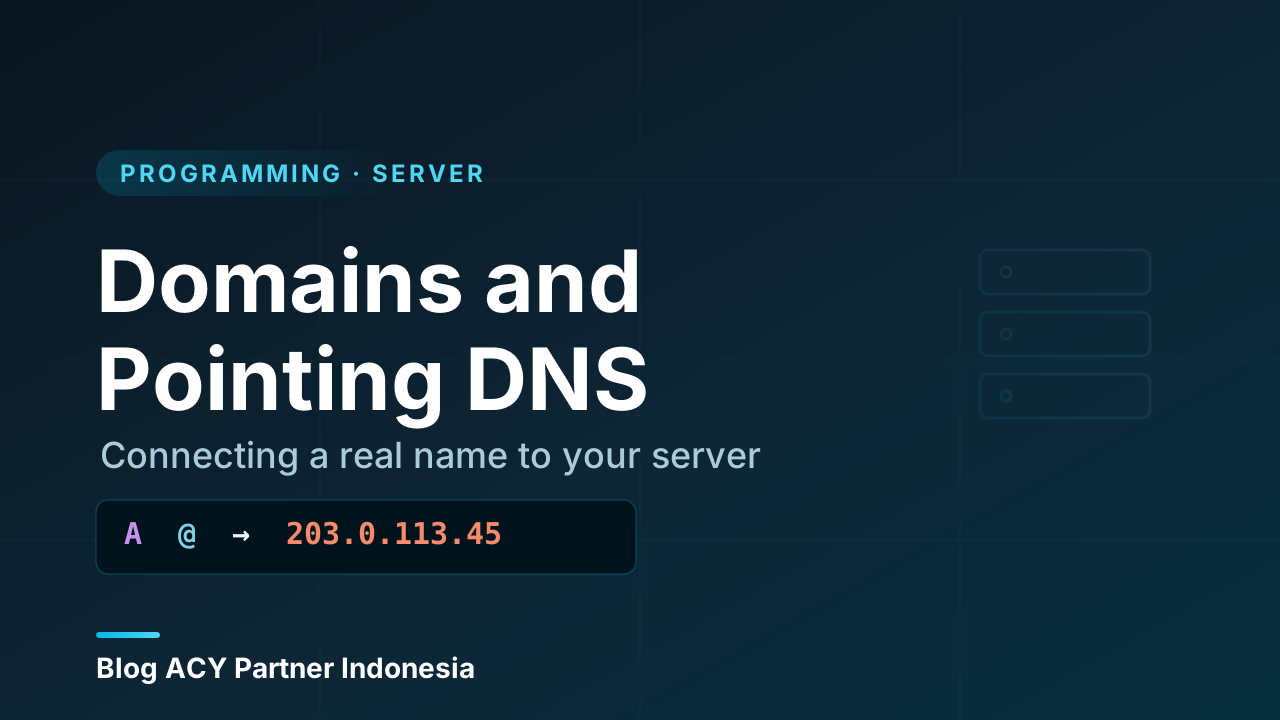
The A record is the workhorse. It maps a name directly to an IPv4 address. This is the record that makes the bare domain point at your server.
Type   Name (host)   Value          TTL
A      @             203.0.113.45   3600
The @ is shorthand for the apex of your domain — the bare name itself, acypartner.example with nothing in front. (Some panels want you to leave the name field blank instead of typing @; they mean the same thing.) The value is your server’s public IPv4. If you’re unsure what an IPv4 address even is, the IP addresses and ports article covers it.
AAAA record — name to IPv6
An AAAA record does exactly what an A record does, but for an IPv6 address. If your server has an IPv6 address (many modern hosts do), add this alongside the A record so IPv6-capable visitors reach you on the faster path.
Type   Name   Value                                    TTL
AAAA   @      2001:db8::45                             3600
You don’t have to add AAAA — A alone is enough to be reachable — but if your server has IPv6, publishing it is good practice.
CNAME record — name to another name
A CNAME points one name at another name rather than an IP. The classic use is the www subdomain: you make www an alias of your apex so both spellings land in the same place.
Type    Name   Value                  TTL
CNAME   www    acypartner.example      3600
Now www.acypartner.example follows whatever the apex resolves to. The big rule to remember: you cannot put a CNAME on the apex itself. The bare domain has to be an A (and/or AAAA) record, never a CNAME, because of how DNS is specified. Some providers offer a workaround they call “CNAME flattening” or “ALIAS” records for the apex — handy when a platform gives you a hostname instead of an IP — but plain DNS won’t let you CNAME the apex directly.
Pick one canonical spelling and redirect the other
You don’t want acypartner.example and www.acypartner.example to feel like two different sites. Make sure DNS resolves both to your server, then handle the choice on the server: pick one as canonical and have the server redirect the other to it. That way visitors and search engines settle on a single address, which is cleaner for SEO and for cookies.
The supporting cast
You’ll bump into a few other record types even on a simple site:
- MX — mail exchange. Only relevant if you want email at your domain. Pointing your website’s A record at a server does not set up email; that’s a separate concern with its own MX records, often at a different provider.
- TXT — free-form text. Used constantly for verification (proving you own the domain to some service) and for email anti-spoofing records like SPF and DKIM.
- NS — nameserver records. These declare which servers are authoritative for your domain. Change these and you’ve moved your entire DNS hosting elsewhere — a bigger lever than editing individual records.
Walking through a real point-and-deploy
Let’s make it concrete. Jane Doe at ACY Partner Indonesia has deployed an app to a server at 203.0.113.45 and owns acypartner.example. Here’s the full sequence.
1. Confirm the server answers by IP. Before touching DNS, she opens http://203.0.113.45 in a browser and sees the app. If that fails, DNS is a distraction — the problem is the server, the firewall, or the app not listening. (Firewall blocking a port is a classic culprit; ports decide which doors are open.)
2. Open the domain’s DNS panel. She logs into whichever provider is authoritative for acypartner.example and finds the DNS / zone editor.
3. Add the apex A record.
A @ 203.0.113.45 36004. Add the www alias.
CNAME www acypartner.example 36005. (Optional) add AAAA if the server has an IPv6 address.
6. Save, then wait — but verify, don’t refresh-and-pray. This is where patience matters. Records don’t appear everywhere instantly. While she waits, she checks with a lookup tool from the command line instead of just hammering the browser:
# ask for the A record of the bare domain
dig acypartner.example A +short

# check the www alias resolves too
dig www.acypartner.example +short

# ask a specific public resolver, bypassing local caching
dig @1.1.1.1 acypartner.example +short
When dig returns 203.0.113.45, the record is live at the resolver she asked. Once that’s consistent, she loads the domain in a browser — and the app appears, by name.
Propagation: why it isn’t instant
You’ll hear the word propagation thrown around as if DNS changes physically crawl across the world. That’s not quite it. DNS is fast to publish; what’s slow is caching. Resolvers all over the internet hold onto previous answers for a duration set by the record’s TTL (time to live, in seconds). If a resolver cached “no such record” or an old IP an hour ago and your TTL is 3600, it may keep serving the stale answer until that hour is up.
TTL = 3600  →  cached answers can linger up to 1 hour
TTL = 300   →  cached answers refresh within ~5 minutes
Two practical consequences:
- For a brand-new record, there’s usually nothing cached yet, so it can show up within minutes — but some resolvers cache negative answers, so a few may lag.
- For a change to an existing record (you’re moving from an old IP to a new one), the old TTL governs how long the stale answer survives. The trick the pros use: lower the TTL well before the change, let the short TTL itself propagate, then make the switch so the cutover is quick, and raise the TTL back up afterward.
'It works on my machine' is double-true with DNS
Your own computer caches DNS aggressively, and so does your browser. After editing a record you might see the old result for a while purely because of local cache, even though the rest of the world already sees the new one (or vice versa). Don’t judge propagation by one browser on one laptop. Query a public resolver directly (dig @1.1.1.1 … or @8.8.8.8), try a different network, and flush your local DNS cache before you conclude anything is broken.
The mistakes that eat an afternoon
Almost every DNS-pointing headache is one of these:
- Editing records at the wrong provider. The domain’s nameservers point at provider X, but you’re editing records at provider Y. Nothing you do takes effect. Check the NS records first.
- Trying to CNAME the apex. The panel either rejects it or silently misbehaves. Use an A record (or your provider’s ALIAS/flattening feature) for the bare domain.
- Forgetting
www(or forgetting the apex). You point one spelling and test the other, conclude it’s “not working,” and chase a ghost. Point both. - A trailing-dot or typo in the value. A CNAME pointing at
acypartner.exampel(typo) or a stray space resolves to nothing. DNS does exactly what you typed. - Expecting HTTPS to just appear. Pointing DNS gets visitors to your server over plain HTTP. The padlock — encryption — is a separate step. Once the name resolves correctly, you set up a certificate; the SSL certificates in practice article is the natural next stop, and most certificate tools actually require DNS to already point correctly before they’ll issue.
- Impatience. You change a record, refresh once, see the old site, and start “fixing” things that were already right — making it worse. Wait, then verify with
dig.
Why getting this right matters
Pointing DNS is the moment your project stops being “a server somewhere with an IP” and becomes a real, nameable destination. It’s also the foundation that several later steps stand on. HTTPS certificates are issued to a name, so they need DNS pointing first. Email, search indexing, link sharing, and trust all attach to the domain, not the raw IP. And because DNS is cached, the discipline you build here — lowering TTLs before a move, verifying with a real lookup instead of a hopeful refresh — is exactly what keeps a future server migration from causing an outage.
Get comfortable reading a zone file and running dig, and a whole class of “the site is down” panics turns into a ten-second diagnosis.
Wrapping up
Here’s the whole thing in one place:
- Pointing a domain means publishing a DNS record that maps your name to your server’s IP. The traffic still goes straight to the IP — the name is just the lookup key.
- You need three things first: a server reachable by IP, a registered domain, and access to its DNS records at whichever provider is authoritative.
- The core records: A (name → IPv4), AAAA (name → IPv6), and CNAME (name → another name, classic for
www). You can’t CNAME the apex — use an A record there. - Point both the apex and
www, then pick one as canonical and redirect the other on the server. - Changes aren’t instant because of caching and TTL, not magic “propagation.” Lower TTLs before a planned change; verify with
digagainst a public resolver rather than trusting one browser. - DNS gets visitors to your server over HTTP. HTTPS is a separate step that needs DNS pointing correctly first.
With the name resolving to your server, the obvious next move is locking the connection down — turning that plain http:// into a trusted https:// with a real certificate.